How to Convert JPG Images to PDF
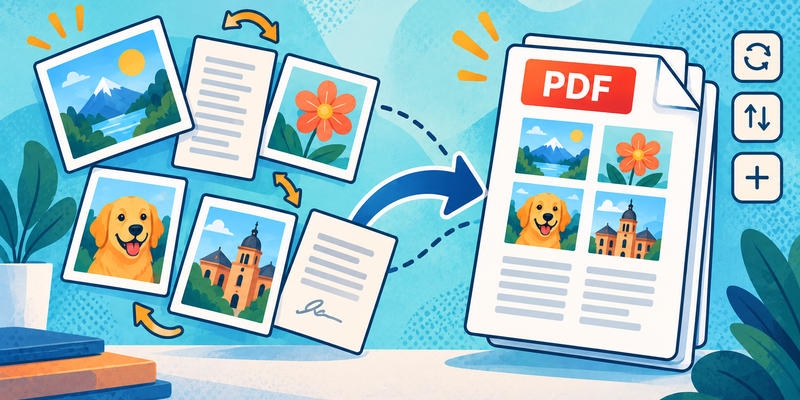
Turning JPG images into a PDF makes photos, scans, and screenshots easier to submit, print, or share as one document. NeatFile converts images in your browser and lets you arrange the pages before creating the PDF.
Convert JPG files to PDF
- Open JPG to PDF.
- Select one or more JPG images, or drag them into the upload area.
- Drag the image cards to set the page order.
- Rotate or remove an image when needed.
- Choose the page size, orientation, and margins in the settings panel.
- Enter an output filename and select Create PDF.
- Select Download PDF when the result is ready.
Each image becomes one PDF page. To combine JPG and PNG files in the same document, use Images to PDF.
Which page size should I choose?
Use Fit to image when preserving the original dimensions matters. Choose A4 or Letter when the PDF will be printed or uploaded to a form with a standard page size. Use margins to keep important content away from the page edge.
Check the result
Open the downloaded PDF and verify that pages are in the intended order, images are upright, and text remains readable. For sensitive documents, download the result and store it where you control access.
Common JPG-to-PDF questions
Can I convert more than one JPG at once?
Yes. Add multiple images and arrange them in the order you want. Each image becomes a page in the exported PDF.
Can I include PNG images?
Yes. Use Images to PDF when your document includes both JPG and PNG files.
Will converting a JPG to PDF improve image quality?
No. Conversion changes the container format; it does not restore detail that was missing from the original image. Check the image orientation and readability before creating the PDF.
Related tools
Try JPG to PDF to turn photos or scans into a shareable PDF.