How to Merge PDF Files Into One Document
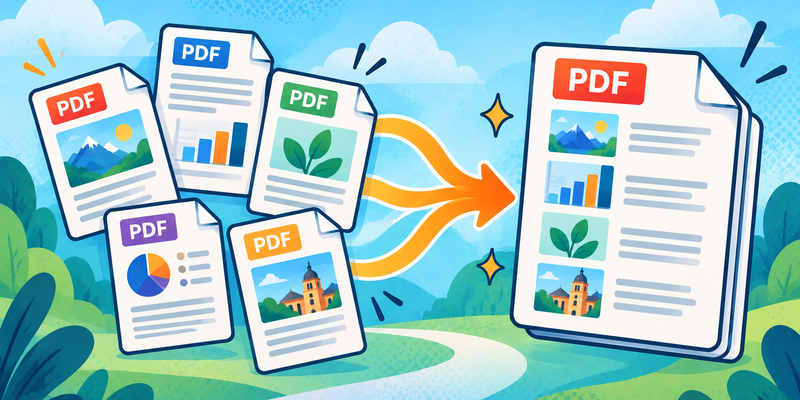
Combining PDFs is useful when documents belong together but were created as separate files. You can merge reports, scanned pages, receipts, or application documents into one PDF that is easier to store and share.
Merge PDFs online with NeatFile
- Open NeatFile's Merge PDF tool.
- Drag and drop your PDF files into the upload area, or select them from your device.
- Review the file cards and drag them into the order you want.
- Use the rotate, preview, or remove controls if a file needs an adjustment.
- Enter an output title, then select Create PDF.
- When the result is ready, select Download PDF.
The merged document keeps the files in the order shown in the workspace. Check the page count and the first and last pages before sharing it.
How to organize a merged PDF
Use descriptive filenames before uploading, put introductory documents first, and keep supporting documents in a consistent order. For long collections, add a table of contents after merging so readers can find each section quickly.
Are my files stored permanently?
NeatFile uses temporary browser and processing storage so you can complete the task. Download the result when it is ready, and do not treat the online workspace as permanent archival storage. Always review the exported PDF before submitting or sharing it.
Common PDF merge questions
Can I merge more than two PDFs?
Yes. Add all the files you need, arrange them in the workspace, and create one combined PDF.
Can I merge JPG or PNG files with PDFs?
Use Images to PDF to turn images into a PDF first, then add that PDF to the Merge PDF tool.
Does merging reduce PDF quality?
Merging primarily combines pages; it does not automatically make the source pages sharper. Open the exported PDF and check images, text, and page order before sharing it.
Related tools
Try Merge PDF when you need one organized document from several PDF files.